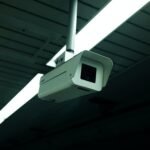

A CCTV camera that’s not recording is one of the most common support calls in the industry. Before assuming the hardware is faulty, work through this checklist — most issues are software, configuration, or storage related and can be fixed in under 10 minutes.
Step 1: Check Storage First
The most common reason cameras stop recording: the hard drive is full and overwrite is disabled, or there’s no drive installed at all.
- Open your NVR interface → Storage → HDD Info
- Check the drive is detected and shows available space
- If full: enable overwrite (NVR will loop-record, replacing oldest footage)
- If no drive detected: check the SATA cable connection inside the NVR
Always use a surveillance-rated drive — WD Purple is the standard. Desktop drives fail prematurely in 24/7 recording environments. Use the storage calculator to confirm your drive is sized correctly.
Step 2: Check Recording Schedule
NVRs don’t record 24/7 by default on all setups — they follow a schedule. If someone changed it, cameras may only record during specific hours.
- NVR interface → Storage → Schedule
- Check each channel has recording enabled for the time period you’re investigating
- Green = continuous, Yellow = motion only, Red = alarm triggered
- Set all channels to continuous (green) across all hours if you want 24/7 recording
Step 3: Verify the Camera Is Live
If a camera shows a black screen or “no signal” in the NVR, it’s not recording — even if the schedule says it should be.
- Open live view on the NVR — can you see the camera feed?
- No image: check the PoE connection. Unplug and replug the Cat6 cable at the NVR port
- Check the NVR’s PoE status page — is the port supplying power?
- If the camera shows in live view but won’t record, the issue is in the NVR settings (go to Step 5)
👉 See: PoE Wiring Guide for connection troubleshooting
Step 4: Test the Hard Drive
A failing or failed HDD will stop recording silently. The NVR may show it as “healthy” even when it’s failing.
- NVR interface → Storage → HDD Detection or S.M.A.R.T. test
- Run a bad sector scan if available
- Any “bad sectors” or “abnormal” status = replace the drive
- If the NVR doesn’t detect the drive at all: try reseating the SATA cable, or test the drive in a PC
Replace failing drives with a WD Purple surveillance HDD. Don’t use a failing drive as backup — data loss risk is high.
Step 5: NVR Channel Recording Settings
Each camera channel in the NVR has individual recording settings. One misconfigured channel can stop recording while others work fine.
- NVR → Camera Management → check each channel is enabled
- NVR → Record Config → verify the channel has a recording type assigned (continuous/motion)
- Some NVRs require you to “bind” each PoE port to a channel — check this in Channel Config
- Factory reset the NVR as a last resort (you’ll lose settings but not recorded footage on the HDD)
Motion Recording Not Triggering?
If you’re on motion-only recording and nothing is being captured:
- NVR → Motion Detection → verify motion zones are drawn for each channel
- Sensitivity too low? Increase it — outdoor cameras often need higher sensitivity
- Check the motion alert schedule — if alerts are disabled outside business hours, recording may also be off
- Test by waving in front of the camera and watching for a recording trigger in the NVR timeline
Common Culprits at a Glance
| Symptom | Most Likely Cause | Fix |
|---|---|---|
| No footage at all | Drive full or not detected | Check HDD status, enable overwrite |
| Footage missing for certain hours | Recording schedule gap | Set 24/7 continuous schedule |
| One camera not recording | Channel config / PoE fault | Check channel binding + PoE port |
| Motion recording not working | Zones not set / sensitivity too low | Redraw motion zones, increase sensitivity |
| Recording stops after a few days | Failing HDD | Run S.M.A.R.T. test, replace drive |
Frequently Asked Questions
Why does my NVR show the camera live but not record it?
Most likely a misconfigured recording schedule or the channel isn’t assigned to record. Check NVR → Record Config and ensure the channel has a recording type set for the current time period.
How do I know if my hard drive is failing?
Run a S.M.A.R.T. test from within the NVR’s storage menu. Any “bad sectors” or “abnormal” results mean the drive should be replaced immediately. Don’t wait — drives don’t recover from bad sectors.
Can I record to an external USB drive?
Most NVRs don’t support recording to USB — USB ports are typically for backup/export only, not primary recording. Use an internal SATA drive. A WD Purple is the correct choice for surveillance recording.
My NVR says “HDD error” — what does that mean?
Either the drive isn’t seated correctly (check the SATA cable inside the NVR) or the drive is failing. Try reseating first. If the error persists after a reboot, replace the drive.
How long should a surveillance hard drive last?
WD Purple drives are rated for 24/7 operation and typically last 3–5 years in active surveillance use. Standard desktop drives fail much sooner under the same conditions. Replace proactively every 3–4 years rather than waiting for failure.
Still not recording after all of the above? The issue may be a hardware fault in the NVR or camera. Browse our 4-channel and 8-channel NVRs if it’s time for a replacement, or contact Roylance Consulting for a professional system diagnosis.