
Designing a CCTV system for a commercial property is a different challenge to a home install. The stakes are higher, the coverage areas are larger, and the client expects it to work — reliably, every time. Get it wrong and you’re going back to fix it on your own dime.
This guide walks through the full commercial CCTV design process — from initial site survey to final equipment spec — so you can quote accurately, install confidently, and deliver a system the client won’t call you about at 2am.
Need expert design support for a complex project? Roylance Consulting provides professional CCTV system design and IT consulting for commercial installations.
Step 1: The Site Survey
Never spec a commercial system from a floor plan alone. A walk of the property takes an hour and saves you from quoting for 8 cameras when the job needs 16.
During the site survey, document:
- Entry and exit points — every door, loading dock, gate, and fire exit
- High-value areas — safes, server rooms, stock rooms, cash handling areas
- Blind spots and obstructions — columns, shelving, partitions, trees
- Existing infrastructure — conduit runs, network closets, power availability
- Lighting conditions — note areas with poor lighting that will need cameras with strong night vision or supplemental lighting
- Mounting surfaces — concrete, drywall, brick, steel — affects drill bits, anchors, and labour time
Take photos of every area you’re covering. They’ll be useful when speccing equipment and invaluable when a client questions why you put a camera there.
Step 2: Defining Coverage Zones
Commercial CCTV coverage breaks down into three priority tiers:
Tier 1 — Critical (must cover)
- Main entrance and reception
- All external doors and loading areas
- Car parks and vehicle access points
- Cash handling and safe locations
- Server rooms and IT infrastructure
Tier 2 — Important (should cover)
- Internal corridors and stairwells
- Stock rooms and warehousing
- Staff-only areas
- Perimeter fencing
Tier 3 — Supplementary (cover if budget allows)
- Open plan office areas
- Communal spaces and break rooms
- Secondary car parks
Start with Tier 1, build your camera count from there, then layer in Tier 2 and 3 based on the client’s budget and risk profile.
Step 3: Camera Selection
Commercial installs demand more from cameras than residential jobs. Here’s how to match camera type to location:
Entrances and Exits
Use a 4MP or 8MP turret or bullet camera with wide dynamic range (WDR). These locations often have backlighting issues — a door open to bright daylight while the interior is dim. WDR handles that contrast without washing out faces.
For facial recognition at entry points, mount between 7–9 feet and angle slightly downward. A 2.8mm lens gives you wide coverage; step up to a varifocal (2.8–12mm) if the entry corridor is long.
Car Parks and Perimeter
Use bullet cameras with long-range IR — 40m minimum, 80m+ for large lots. Mount high (10–14 feet) for wide coverage. Full-colour night vision is worth the premium here; colour footage is far more useful for vehicle identification than black-and-white IR.
Internal Areas
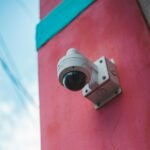
Dome cameras are the standard for internal commercial use. They’re tamper-resistant, unobtrusive, and offer wide-angle coverage. A 4MP dome with a 2.8mm lens covers most internal spaces effectively.
Tight Spaces and Corridors
Consider a fisheye or 180° panoramic camera for corridors, server rooms, or reception desks where you need full-room coverage from a single mounting point.
👉 See our full guide: Bullet vs Dome vs Turret Cameras
Step 4: Specifying the NVR
Your NVR choice determines what the system can do today — and how far it can grow. For commercial installs, spec with headroom:
- Camera channels: Always spec at least 25% more channels than the current camera count. An 8-camera install should go on a 16-channel NVR. Clients add cameras.
- Resolution support: Ensure the NVR supports the full resolution of every camera in the spec. An NVR that down-samples a 4K camera to 1080p is a waste of the camera.
- PoE ports: PoE NVRs (like the Titanium 8-Channel PoE NVR) simplify wiring by running power and data over a single Cat6 cable. For larger installs with cameras spread across a building, you may need a separate PoE switch instead.
- HDD bays: Commercial systems need more storage than residential. Look for NVRs with 2+ HDD bays so you can expand storage without replacing the unit.
- Remote access: Client staff will want to check cameras from their phones. Ensure the NVR supports a modern mobile app with secure remote access.
For most small-to-medium commercial installs (8–16 cameras), the Titanium 8-Channel NVR is a solid starting point. Step up to a 16-channel unit for anything larger.
Step 5: Storage Calculation
Storage is where commercial installs get expensive fast if you don’t plan it correctly. More cameras, higher resolution, and longer retention requirements all drive up HDD needs.
Key variables:
- Camera count and resolution — more cameras and higher resolution = more data
- Frame rate — 15fps is sufficient for most commercial use; 25fps for high-security areas
- Compression — H.265+ significantly reduces storage vs H.264
- Retention period — 30 days is standard commercial; 90 days for higher-security requirements
- Motion-only vs continuous recording — motion-triggered recording can cut storage needs by 60–70%
Use the CCTVTrainer Storage Calculator to get an accurate figure before quoting. Undersizing storage is one of the most common commercial install complaints.
For most commercial installs, use WD Purple surveillance-rated HDDs. They’re built for the 24/7 write cycles that CCTV recording demands — standard desktop drives fail prematurely in this application.
Step 6: Cabling and Infrastructure
Cabling is where commercial installs earn or lose margin. Plan it properly and your install runs smoothly. Wing it and you’re pulling cable through finished walls twice.
Cat6 for IP Systems
Use Cat6 for all IP camera runs. Cat5e will work but Cat6 gives you more headroom for future upgrades and handles PoE more reliably over longer runs. Maximum recommended run length for PoE is 100m (328ft).
For runs over 80m, test with a cable tester before sealing walls. Signal degradation at that length can cause intermittent issues that are difficult to diagnose after the fact.
Conduit
Any cable run that’s exposed — on an external wall, above a suspended ceiling in a public area, or accessible in a plant room — should be in conduit. It protects against physical damage, pest interference, and deliberate sabotage. It also looks professional.
Network Closet Planning
Identify the NVR location early. It should be:
- In a secured room (network closet, server room, manager’s office)
- Within 100m Cat6 run of all cameras where possible
- Near a UPS (uninterruptible power supply) for power protection
- Accessible for maintenance without disrupting operations
👉 Related: 7 CCTV Installation Mistakes That Kill Your Security System
Commercial CCTV Install Checklist
Pre-Installation
- ☐ Site survey completed, photos taken
- ☐ Coverage zones defined (Tier 1/2/3)
- ☐ Camera positions marked on floor plan
- ☐ NVR location confirmed
- ☐ Cable routes planned and measured
- ☐ Storage requirement calculated
- ☐ Client sign-off on equipment spec
During Installation
- ☐ All cable runs labelled at both ends
- ☐ Exposed runs in conduit
- ☐ Camera mounting heights between 7–14ft (application-dependent)
- ☐ Junction boxes installed at every camera
- ☐ NVR secured in locked location
- ☐ UPS connected to NVR
Post-Installation
- ☐ All cameras confirmed live in NVR
- ☐ Night vision tested in each location
- ☐ Remote access set up and tested on client device
- ☐ Motion detection zones configured
- ☐ Recording schedule confirmed
- ☐ Client trained on system operation
- ☐ Documentation left with client (camera map, NVR login, app setup)
Frequently Asked Questions
How many cameras does a commercial property need?
It depends on the size and layout of the property, but a general rule is one camera per entry/exit point, plus additional cameras for high-value areas and blind spots. A small retail unit might need 6–8 cameras; a medium warehouse or office block typically needs 12–24.
What resolution is best for commercial CCTV?
4MP (2560×1440) is the sweet spot for most commercial applications — sharp enough for facial recognition at entry points and vehicle identification in car parks, without the storage overhead of 4K. Use 8MP/4K for critical areas like safes or server rooms where maximum detail matters.
How long should commercial CCTV footage be retained?
30 days is the standard minimum for most commercial properties. Insurance requirements, lease agreements, or local regulations may specify longer. Higher-security environments (financial services, government) often require 90 days.
Do I need planning permission for commercial CCTV?
In most cases, no — but cameras must be positioned so they don’t capture footage beyond the property boundary (public streets, neighbouring properties). GDPR and data protection laws apply to any system that stores identifiable footage. Post signage to inform people they are being recorded.
What’s the difference between a PoE NVR and a standalone NVR with a PoE switch?
A PoE NVR has built-in PoE ports — cameras plug directly into the back of the NVR, no switch needed. It’s simpler and ideal for 4–16 camera installs. A standalone NVR + PoE switch gives you more flexibility for larger installs where cameras are spread across a building and need to connect to a network switch rather than run all the way back to the NVR.